


Artspire: AI Video Generator
3.234.00 Reviews
App Specs
- Version
- 3.9.0
- Updated On
- License
- Free
- Downloads
- 1,000,000+
- Developer
- NXL AI Solutions
- Categories
- Art & Design
- Platform
- Android
Screenshots
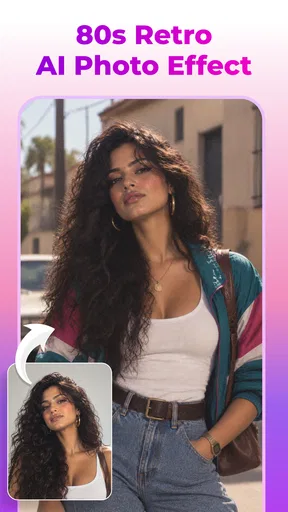
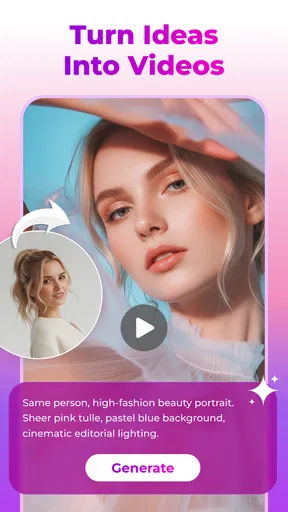
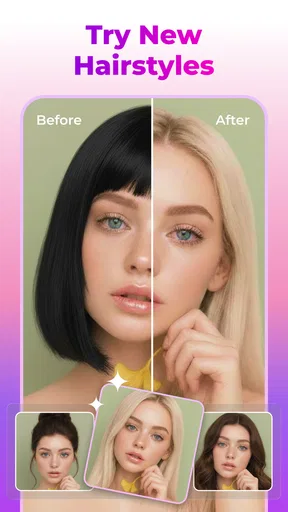
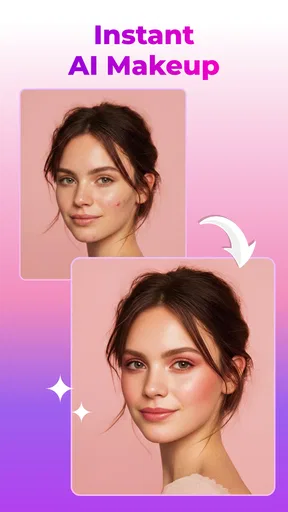
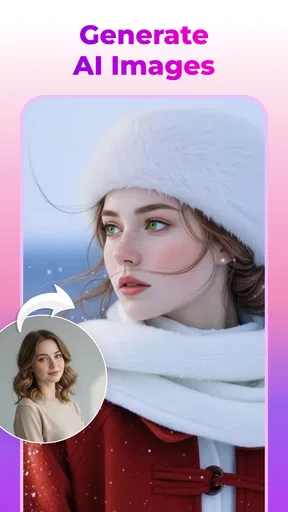
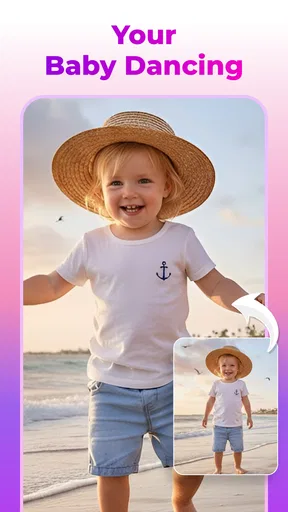
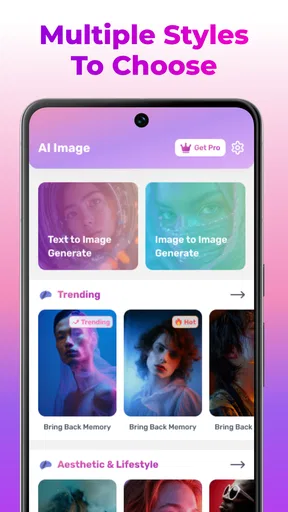
 Analysis by AppCompare
When I want to give a photo a more imaginative treatment without building a video from scratch, I look for a tool that makes experimentation feel manageable. Artspire: AI Video Generator is aimed at that kind of creative detour: it can turn a still image into AI-generated art or video, making it useful for a social post, a personal project, or simply seeing a familiar picture in a new way. Its focus is less on meticulous editing than on helping me explore what an image might become.
My overall impression is that Artspire works best as a creative starting point, not as a replacement for a full video-editing suite. The important question is not whether AI can make something eye-catching; it can. It is whether the result fits the look, framing, and purpose I have in mind, and how much adjustment I am willing to do afterward. That distinction matters if you expect precise control rather than quick exploration.
A practical fit for casual creative projects
I see the strongest case for using Artspire when I already have a photo and want a compact visual idea to share or develop. A small business owner might test a stylized image for a social post, while a hobbyist could make a personal picture feel more expressive. In both cases, I would treat the generated result as a draft to judge, not as an automatic finished asset. That mindset makes the app useful even when the first attempt is not quite right.
For an everyday example, imagine I have a clear photo from a weekend walk and want to send something more lively to a group chat. I would try a restrained visual direction, check whether the important parts of the scene still read clearly, and share only if the transformation adds something. If the image starts to lose the details that made the moment special, the original photo is the better choice. That is a simple way to keep the tool fun instead of turning a casual idea into a long editing session.
From a photo to a first result
I find that the easiest way to get a useful first result is to decide what I want the photo to feel like before I start, rather than asking for change in general. That gives me a clear basis for judging whether the transformation adds something or merely alters the image. From there, the section looks at choosing a source and assessing the output for its intended purpose.
Start with an image that has a clear subject
A sensible first workflow is to choose a photo whose main subject is easy to understand at a glance. A portrait, a pet, or a single object gives an AI generator a clearer visual anchor than a crowded scene with several competing focal points. Before starting, I would crop away distracting edges and check that the subject is well lit. Those simple choices make it easier to judge whether the generated motion or artistic treatment suits the image, rather than confusing a weak source photo with a weak result.
Once the image is ready, I would decide what I want the transformation to accomplish. “Make this more interesting” is hard to assess; “give this portrait a dreamlike mood” or “make this landscape feel more cinematic” is a more useful creative target. Even when the app is doing much of the visual work, that small bit of planning gives me a better standard for deciding whether to keep a result or try another direction.
Worth Reading Before You Choose

EA SPORTS FC Mobile 26 Is a Bigger Football Game, but It Takes Time

Flipboard Shows What News Apps Must Do Beyond the Feed

Switching to Android Auto Means Rethinking Your Driving Routine

Google Calendar Makes a Crowded Week Easier to Manage

Ludo King Makes the Most of the Minutes Between Plans

Baby Panda World Brings Quick Play to Modern Phones, but Its Game Library Feels Busy
The workflow is particularly suited to turning existing images into something more expressive. For instance, I might take a photo from a weekend walk and make a short visual piece to share with friends, rather than opening a desktop editor just to add movement or an artistic treatment. That is the kind of everyday use where a focused mobile tool can save effort: the photo is already there, and the goal is to make it feel fresh without building a video from scratch.
Judge the output by its intended use
I would not use the same standards for every result. A playful clip for a private chat can be successful even if it has an unusual detail; a product image or a professional campaign needs closer scrutiny because a distorted edge or a change in a recognizable feature can undermine trust. Looking at the output at full size is worthwhile, especially around faces, hands, text, and small objects. AI-generated visuals can look convincing at a glance yet reveal oddities when examined closely.
That makes a short review loop more useful than repeatedly generating images without a plan: choose one source photo, make one clear creative attempt, inspect the parts that matter, then adjust the image or goal before trying again. I find this approach helps separate a genuine improvement from a result that is simply different. It also limits the temptation to keep chasing a perfect version when the task only calls for a quick, fun visual.
When another kind of app is the better choice
For a quick visual reinterpretation, Artspire has a different appeal from a standard photo editor: I can explore a larger change without manually adjusting every element. But if I want to retouch a small blemish, preserve exact colors, or make a predictable crop, a conventional editor is the more direct choice. The two approaches solve different problems, and switching tools is often faster than trying to make an AI treatment behave like a precise retouching brush.
Likewise, a dedicated video editor is a better fit when I already know the sequence I want, need careful timing, or have to combine several clips into a polished piece. Artspire makes more sense when the starting point is a photo and I want to discover a visual direction. I would decide between them based on whether I need an unexpected interpretation or dependable control; that distinction can save time before I even begin.
Settings, habits, and useful trade-offs
Once I know the basic workflow, I pay attention to the small choices that can save a round of rework: keeping the source intact, changing one element at a time, and matching the result to where I plan to use it. These habits do not promise identical generations, but they make experiments easier to compare and keep costs and creative effort in perspective.
Check the choices that affect your result
Before settling into a routine, I would look through the available controls rather than assuming every generation follows the same path. In a photo-to-art workflow, the choice of visual direction and the way the source image is prepared can matter more than a long prompt. If a result feels too far from the original, I would simplify the request and choose a less dramatic treatment; if it looks flat, I would make the intended mood more specific. This is a practical way to diagnose an outcome without blaming the app for every mismatch.
I would also check any export or output choices available at the time of use and match them to where the result will go. A piece intended for a phone screen does not need the same framing decisions as artwork meant to sit inside a larger project. I avoid doing detailed finishing before I know the generated result works: first confirm the subject and overall feel, then spend time polishing or sharing it. That order prevents wasted effort when the core transformation misses the mark.
For anyone wondering about cost, Artspire is free to install, while in-app purchases range from $4.99 to $79.99 per item. I would treat that range as a reason to inspect purchase details in the app before committing, rather than assume every creative option is included at no cost. If I only need occasional experiments, I would first see how far the free experience takes me and decide whether a paid item solves a real limitation in my own workflow.
Build a repeatable process instead of guessing
Experienced users can save time by keeping their process consistent, even without relying on hidden shortcuts. I would use a small set of well-chosen source images, make one change at a time, and compare each result against the same creative goal. If I change the image, the style, and the wording all at once, I cannot tell which choice improved the output. A repeatable sequence—prepare the photo, define the mood, generate, inspect, and refine—makes the next attempt more informative.
Another useful habit is to keep the original photo separate from the generated version. That gives me a clear fallback and makes it easier to compare what the AI changed. For a recurring project, I would also note the kind of phrasing and image composition that worked, rather than expecting a vague prompt to produce the same look every time. This is not a guarantee of identical results; it is simply a better way to learn what tends to suit my own material.
Artspire is developed by NXL AI Solutions, and its current version is 3.9.0. It has passed one million installs, while its average rating is 3.2 from around 2.2 thousand ratings. I read that rating as a cue to keep expectations measured: the app has found a substantial audience, but the overall response suggests it may not satisfy everyone equally. For a tool whose results depend heavily on source images and creative expectations, trying it on a low-stakes project is more sensible than making it central to a deadline-driven workflow immediately.
Small checks that prevent avoidable rework
One useful trade-off is deciding how much of the original photo I want to preserve before generating anything. If recognizability matters, I would pick a source with a simple background and make the creative direction clear but not overly ambitious. If the goal is a more surprising piece, I can accept greater change and judge the result on mood rather than resemblance. Making that choice up front helps me avoid treating every unexpected detail as a failure.
I would also keep a clean copy of any image I may want to reuse. That is especially helpful when a photo has sentimental value or is part of a project with several possible treatments. Rather than overwrite or lose track of the source, I can compare the generated version against it and choose the better fit for the audience. This habit matters more than chasing a perfect prompt: it protects the material and makes experimentation reversible.
Where it fits among other creative tools
Compared with a conventional photo editor, an AI generator is attractive when I want a larger visual transformation without manually adjusting every element. Compared with a full video editor, it is better suited to producing an AI-driven visual starting point than to carefully assembling a finished sequence with precise cuts, titles, and timing. If I already know exactly how a video should unfold, a traditional editor gives me the control I need. If I am curious to see how a still image might be reimagined, Artspire is the more inviting place to experiment.
That difference also helps answer who should skip it. A designer who needs exact brand colors, predictable product details, or frame-by-frame control may be happier with established editing software and AI tools that offer more precise controls. Someone who wants a quick way to explore stylized imagery from personal photos is a better match. I would be cautious about using generated results as final assets for anything where factual accuracy or faithful likeness is essential without carefully checking every detail.
Limits that shape the best use cases
The main trade-off is creative control. A generator can offer a striking interpretation while also changing details I wanted to preserve. That is part of the appeal when I am exploring, but a real limitation when a photo contains a specific object, expression, or visual identity that must remain intact. Starting with a clean image and a restrained goal can help, but it cannot turn an open-ended generative process into a precision editing tool.
There is also a difference between making a visual and finishing a deliverable. If I need captions, exact pacing, multiple clips, or a carefully branded layout, I would expect to continue in a dedicated editor. Artspire makes more sense as one stage in that process: generate a visual idea, decide whether it earns a place in the project, and then use the right tool for final assembly. This keeps its strengths in focus instead of asking it to do every job in a creative pipeline.
The app is rated for Everyone, which makes its intended audience broad, but the practical fit still depends on the user’s expectations. Beginners can approach it as a place to play with photos and learn what kinds of transformations they enjoy. More experienced creators can use it for ideation or quick social content, provided they are comfortable reviewing the result and finishing elsewhere when needed. The rating does not remove the need for a parent or user to make sensible choices about purchases and sharing personal images.
My verdict: best for exploration, not exact production
I would recommend Artspire to someone who likes experimenting with visual ideas and wants a straightforward route from a photo to AI-generated artwork or video. Its strongest practical role is helping me discover a look I might not have made by hand, then giving me something I can assess, share, or take into another editor. The most effective way to use it is deliberate rather than random: choose an uncluttered image, set a clear intention, inspect the important details, and refine only after seeing what the first attempt gets right.
I would not choose it as my only tool for a tightly controlled video project, and I would not assume every generated result is ready to publish unchanged. Those are meaningful limits, not reasons to dismiss the app. Artspire is free to begin with, carries in-app purchases, and is intended for all ages; its Jan 26, 2026 release date and minimum OS requirement of 8.0 help prospective users check basic compatibility before installing. For a casual creator or a curious photo enthusiast, it is worth trying with a project where surprise is welcome. For exactness, predictable edits, or polished production, I would pair it with a more traditional editor—or choose one instead.
Pros
- Quickly turns text prompts or images into short AI-generated videos.
- Useful for creating social posts
- visual concepts
- and creative experiments.
- AI generation lowers the barrier to making videos without editing skills.
- A range of visual styles can help tailor results to different projects.
- Simple prompt-based workflow is approachable for first-time users.
Cons
- Generated results may not closely match the prompt or reference image.
- Video length and output options may be limited by the app or plan.
- Complex scenes can show visual glitches or inconsistent details.
- High-quality generations may take time or require a stable connection.
- Free access may include generation limits or paid features.
FAQs for Artspire: AI Video Generator
What is Artspire: AI Video Generator?
Artspire: AI Video Generator is an app designed to create videos using artificial intelligence, typically from prompts, images, or other inputs offered in the app. Its available tools and results may vary by version and platform. Before downloading, check the current app listing to confirm which creation options are supported and whether they match the kind of video you want to make.
Is Artspire: AI Video Generator free to use?
The app may be available to download without an upfront charge, but that does not necessarily mean every feature is free. AI generations, premium styles, exports, or other tools may be limited or require a subscription or in-app purchase. Review the pricing details, trial terms, and renewal conditions shown in the store and inside the app before starting a paid plan.
Do I need an internet connection to create videos with Artspire?
AI video generation commonly relies on online processing, so you should expect to need a stable internet connection for at least some of the app’s main features. Uploading images, submitting prompts, generating clips, and saving results may also use mobile data. Check the app’s current requirements, and consider using Wi-Fi if you plan to create or download larger video files.
Can I use my own photos or prompts in Artspire, and what happens to them?
The app may let you provide prompts or personal images as part of a creation workflow, but supported inputs can differ by version. Before uploading anything sensitive, read the privacy policy and in-app notices to understand how submitted content is processed, stored, or shared and whether it may be used to improve services. Avoid uploading private images unless you are comfortable with the stated terms.
Can I share or use videos made with Artspire for commercial purposes?
You may be able to save or share generated videos, but export options, watermarks, and usage rights can depend on your plan and the app’s terms. Commercial use is not guaranteed simply because a video was generated in the app. Check the current license and store information, and make sure you have permission to use any uploaded photos, music, logos, or other material included in your creation.


